This has been a thing for a while, taking photos in-game as a “photographer” would.
GTA V has the instamatic, but it sucks as the resolution of the image you eventually can download from the social club is naff, but with the PC, xBox and PS4 all having capture hotkeys/buttons i can at least capture HD “photos” when using photo modes or in-game cameras.
so, keep an eye out on the instagram, Twitter, and eventually Flickr too for my in game photos.
Hardware: Elgato Stream Deck (the 15 button one) Elgato HD60 HDMI capture card Blue Yeti Microphone Logitech C922 Pro Stream Full HD Webcam The occasional CatCam is currently a slightly older Logitech C110 webcam, but i’m lookig to upgrade that with a cheap HDMI cam (just for higher resolution kitteh)
OBS is the basic AK47 workhorse of streaming software. There are others around, but OBS seems to fit into the “simple enough to get going” and “advanced enough for me to tinker with things when i need to” slot. it also integrates perfectly with the Elgato Stream Deck, whose management software allows you to tie buttons on the Stream Deck directly to OBS functionality.
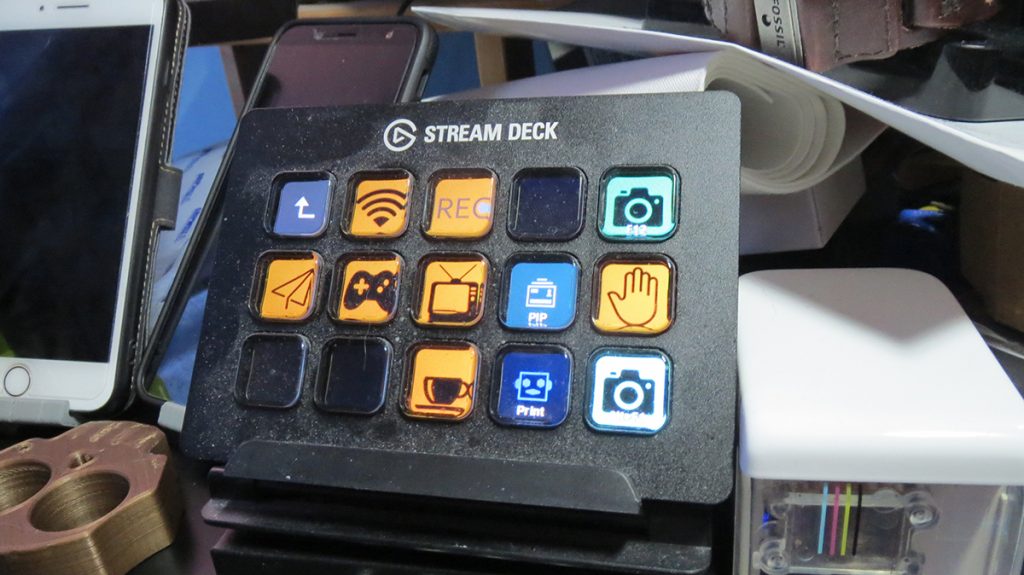
Elgato Stream Deck
OK, so the buttons are a -little- bit of a con, in that really it’s a single screen with buttons over the top. However, while at first glance you might think you just get 15 functions to play with, each button can be a folder of a set of buttons, so it’s more or less infinite the limits of functions you can set up. Each button can represent a scene in OBS you want to switch to, so the middle row from left to right for my general streaming is “Intro – Coming Soon”, “main PC screen game capture”, “HDMI capture”, “Pic in PIc”, and the hand is “Outro”.
So for any given stream i can start with the Intro, switch to my main game broadcast (main game or HDMI) and then once I’ve finished, swap to the Outro for a few minutes before I end the transmission. the top two buttons to the left of the middle are toggling broadcast (the button changes colour when I’m broadcasting) and “record” so I can record as well as or instead of, broadcasting. the coffee cup is a “taking a break” scene.
All in all, instead of faffing with CTRL or ALT hotkeys, you just bash away at this nicely mounted little backlit control panel. I’m not sure it’s priced particularly well, the 15 button unit retails for round about £130. There’s also a newer 32 button edition for over £200! for someone who wants to stream seriously, it’s worth a punt, and very, very useful to have, but it could be priced just a little more competitively.
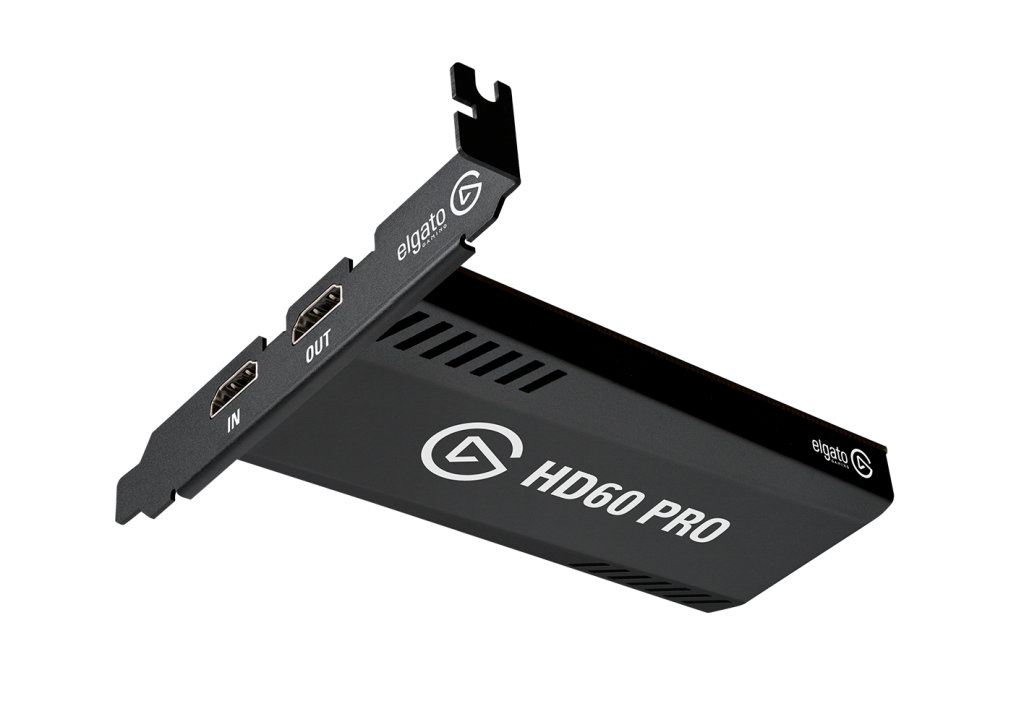
Elgato HD60 Pro HCMI capture card
If you’re streaming on a PC, but you want to capture either the output from another PC, or from a Console like the XBox or a Playstation then an HDMI capture device is essential. I’d say the HD60Pro is one of the simpler and solid products you can pick up for doing this. other USB HDMI devices exist, but they suffer from lag, so you want what’s on the screen and going out to sync with what you’re saying. the PCI HD60 results in almost 0 lag, and is a simple pass through device, so while i’m gaming on the XBox, i can see the PC screen with OBS, chat windows etc, and play on a seperate screen. OBS also picks it up as a standard Video device, just like a webcam, and it takes moments to add to an OBS scene. again, for serious streamers who will be using other devices, it’s a must have.
I have a Nintendo Switch, and XBox and a Playstation, all of which I could stream from if I wanted, so this gives me options depending on what I fancy doing. Given the hassle of viewing chat on a second device, and the fact that OBS, while a damn good piece of software sometimes has issues being told what window you want to capture, I’ve found myself leaning more towards streaming off the XBox, which doesn’t hurt when the Game Pass gives me a library of random games which can take advantage of.
As an aside, it’s looking more like most professional streamers use a PC to game on, and then a seperate PC to stream from, picking up the output of their gaming rig through one of these beasts, and the composing it all on a seperate machine. For performance and usability reasons this is a pretty good argument, although it’s a little costlier for smaller streamers (like me for example).
The more I stream though, the more I agree with this proposition; keeping the Streaming software, chat etc. out of the way and reducing any reduction in performance of your gaming hardware is a good argument.
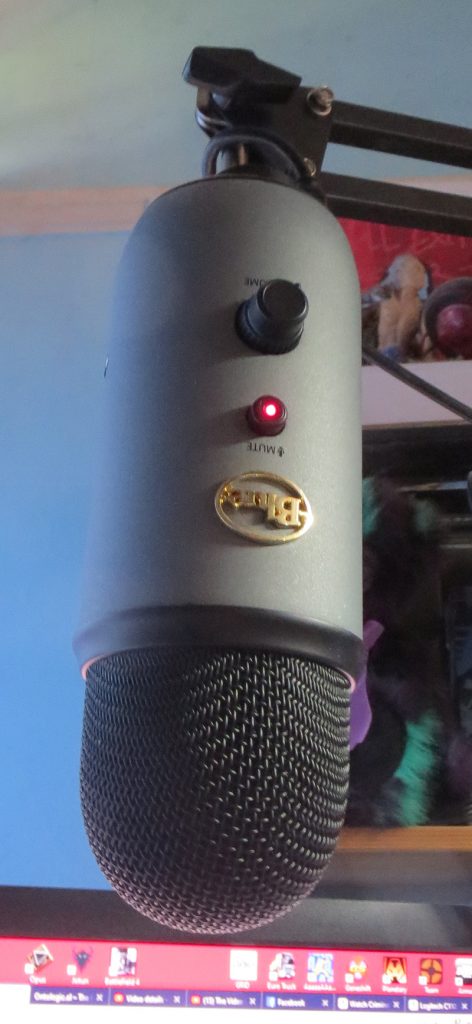
Blue Yeti microphone on articulated arm
There’s a bit of me that wonders if you really need to get a professional microphone, but what I do know is that the mic on your headset is not worth a damn. It’s good for in-game communications, but sucks when you’re looking at broadcast quality voice. everyone has a seperate “proper” microphone. The Blue Yeti is large, but extremely powerful, and does look quite good, even though as far as i’m concerned should never be seen on stream. There seems to be a “thing” for many streamers to show their Microphone in front of them, which I think looks kinda stupid, and is completely unnecessary. The Yeti picks up my voice perfectly from over a foot and a half away, and in the picture you can see I’ve got it mounted on a cheap Neewer arm I bought off Amazon.
If you do want to mount any of the Blue microphones on a tripod thread, be aware you’ll need a thread adaptor. If memory serves, I think a 1/4″ on the inner out to a 5/8″ thread, but you’d need to check the screw you’ve got and the microphone model you’re using.
Note: if you go away from your rig in-stream and don’t have a seperate scene for that (with the sound off) think hard about the gain level you set on the Yeti. It can pick up sounds from a room or two away, which can be extremely embarassing.
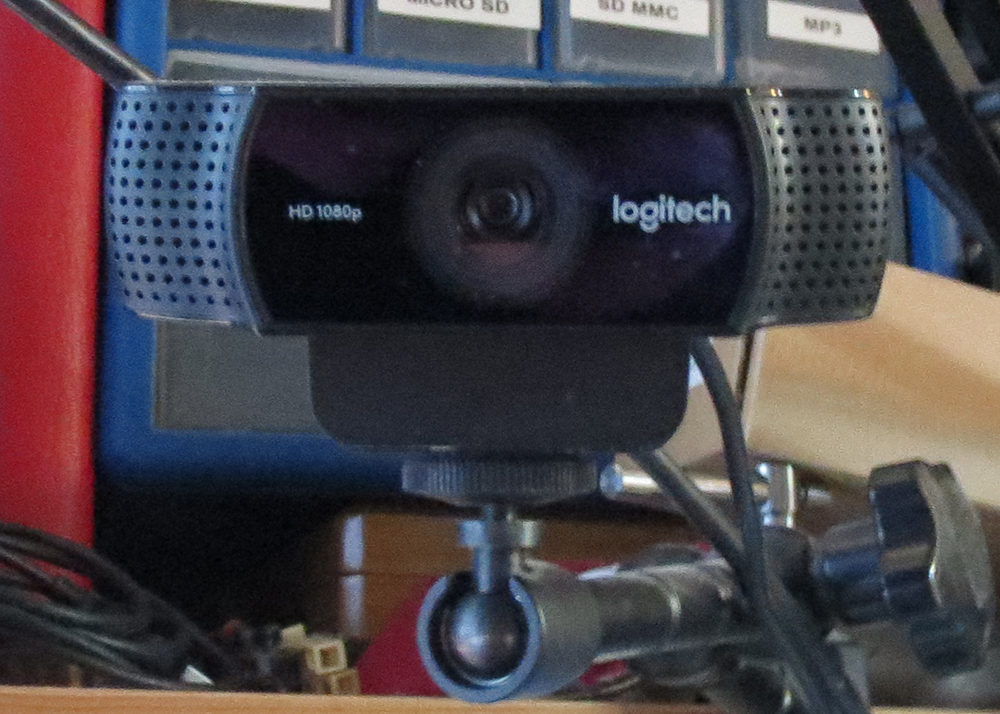
Logitech C922 on camera threaded arm
Here you can see another ariculated arm in use to hold my Logitech C922. Annoyingly there don’t seem to be many Webcams with Tripod mounts on them, but the C922 is a solid HDMI webcam which does, as well as the normal over-the-top-of-the-screen clip. The arm in use here is more solid and less suceptible to vibration or knocking than the articulated arm I use for my mic. as it’s high and out of the way, I don’t need to move the WebCam, but the flexible arm for the Mic means I can swing it out of the way when I feel it getting in the way. Again, there are plenty of cheaper options out there, but Logitech seems to be reliable and long lasting, I’ve had no issues with this one so far.
It does have an integrated microphone so you could probably stream with this alone if you really wanted, without the need for a seperate mic. There’s included software, including Chromakey/background replacement, but I’ve never been as bothered about that. Regarding Chromakey, OBS has a perfectly good option built in, which works reasonably well, although my current OBS scenes don’t really rely on that style of visuals.
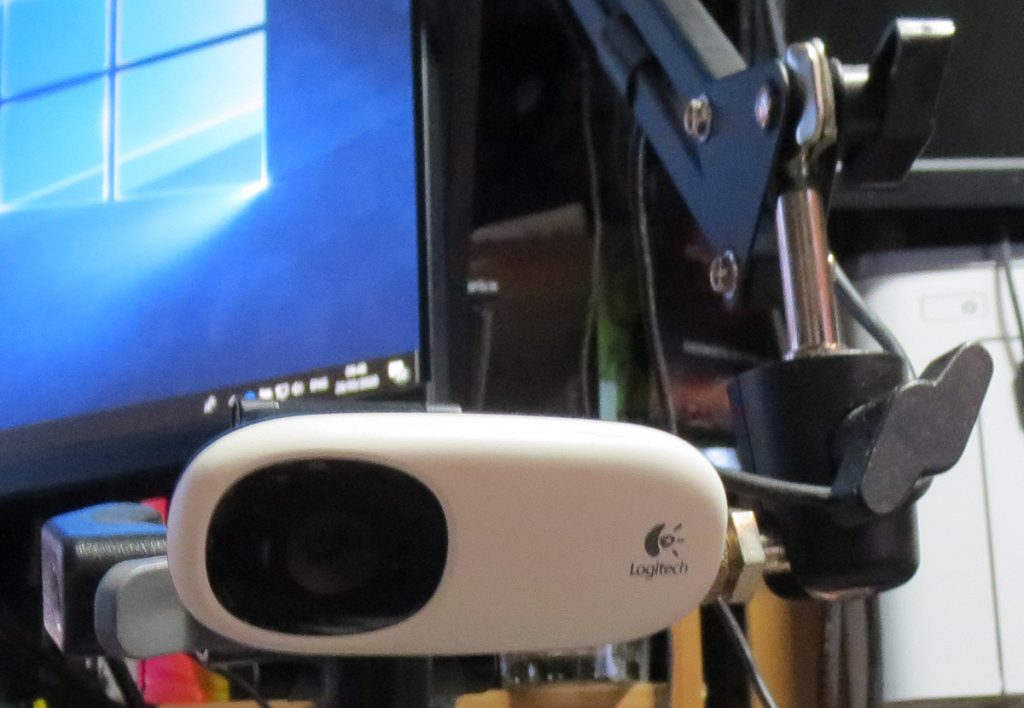
Logitech C110 webcam on articulated arm
Last but not least, there’s the Logitech C110 which is now being used for CatCam (when a cat is present anyway). I’m hoping to replace with a cheap eBay Microsoft Lifecam as it has a tripod thread for the arm you can see in the picture. the clip i’ve using is clumsy and unstable.
You might think that with all these arms, it can get a little cluttered, but that’s only while streaming. The advantage of the arms and mounts is that you can reposition, move around, and when you’ve finished, move completely out of the way. Having a microphone constantly on the desk can look good (maybe), but storage and so on is less complicated when all you need to do is simply swing it out of the way.
Retail wise, this lot if you pick it up all at once could cost a lot, but most of these I grabbed from eBay, and the Stream Deck was heavily discounted during a black friday sale. I think even now I’d stil balk at the 130 quid price tag. For a complete beginner, the C922 webcam could double as microphone at a pinch, so it’s a good solid core of your hardware. All sorts of keyboards are out there to set macro keys to, which could take care of the Stream Deck functionality, and if you want some DIY maker kudos, lots of kits for programmable mini keyboards are out there and look good too!
That’s my hardware, just as far as Streaming kit goes. In a future article I’ll take a look at OBS, and some of the overall basic setup you can do, and at least what I’m managing to do with it.
Thanks for reading, leave comments and so on if you like!